

File download
Download it here:
What is it?
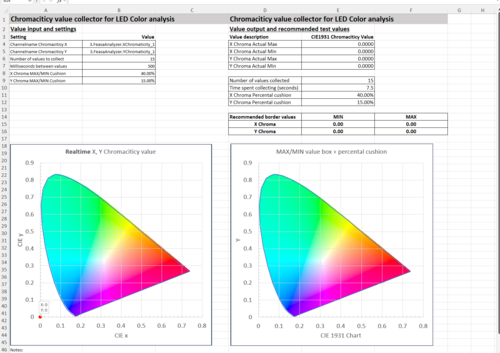
The Chromaticity Analysis Tool uses the CIE1931 color space to define the quality of a color independent of its luminosity. The tool uses the Accordion2Excel plugin connected against an Accordion AGENT which in turn has a connection to a optical measurement tool, in this case the Feasa LED Analyser, but other tools which can measure light and represent it as chromaticity values can be used as long as they integrate against Accordion.
Why do I need it?
When you want to know or define an actual color for something, like a LED light on a circuit board or a product casing light, this tool can be used to give you the chromaticity values, but also suggestions on limit values for testing such light sources.
It can also give you a feel of what type of limit values will create what color range in the CIE 1931 diagram.
There are tools dedicated to this, like the Feasa LED Spectrometer, however you may not have access or budget to this or the current environment can be updated and analysed with current hardware instead.
The Chromaticity Analysis Tool can help you do the following things:
-
See X and Y Chromaticity coordinates in realtime projected onto a CIE 1931 color space diagram.
-
Run multiple measurements to achieve avarages
-
Understand what limit value range is optimal for the application need
-
Give you X and Y Chromaticity test value ranges
-
Let you print the setting and the output page to a perfect A4 report size.
How do I use it?
Firstly, make sure your light probe is set up in the way that you want collecting the light. Then:
-
Fire up the Accordion2Excel plugin and activate it.
-
Open the Chromaticity Analysis Tool excel file of latest revision (top of this page)
-
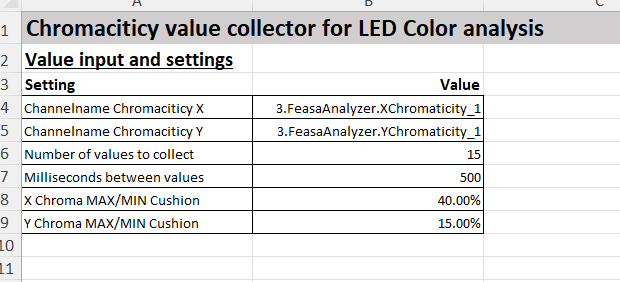
Make your settings, starting from the top left corner. The first two settings are the channel names that are used to collect your measured values. So if you have a module connected to Accordion, you can see the default values for the channel in the Accordion Controller channel list. If you have used an alias file to change the name of the channel, use that name instead.
-
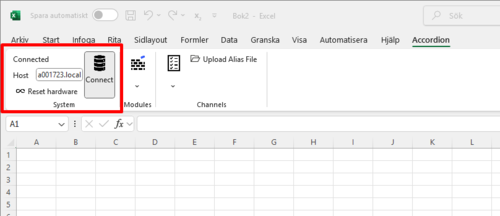
Go to the Accordion tab in the excel menu, write the hostname of your Accordion system and then press connect.
-
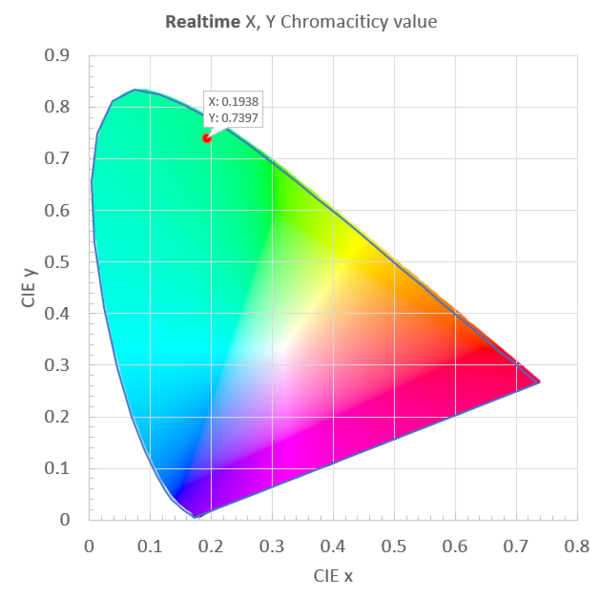
You should now see realtime values coming in and after your "time spent collection" has passed, you can enjoy recommended border values to the right.
-
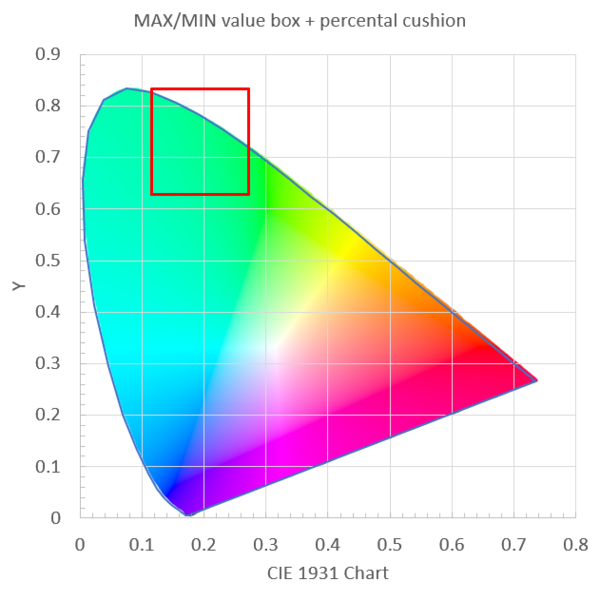
You are free to experiment on setting different "cushion" percentages which will change the red box and the range of the recommended border values.
-
Use your recommended limit values as you like.
