

Accordion Pilot - User Guide
Overview
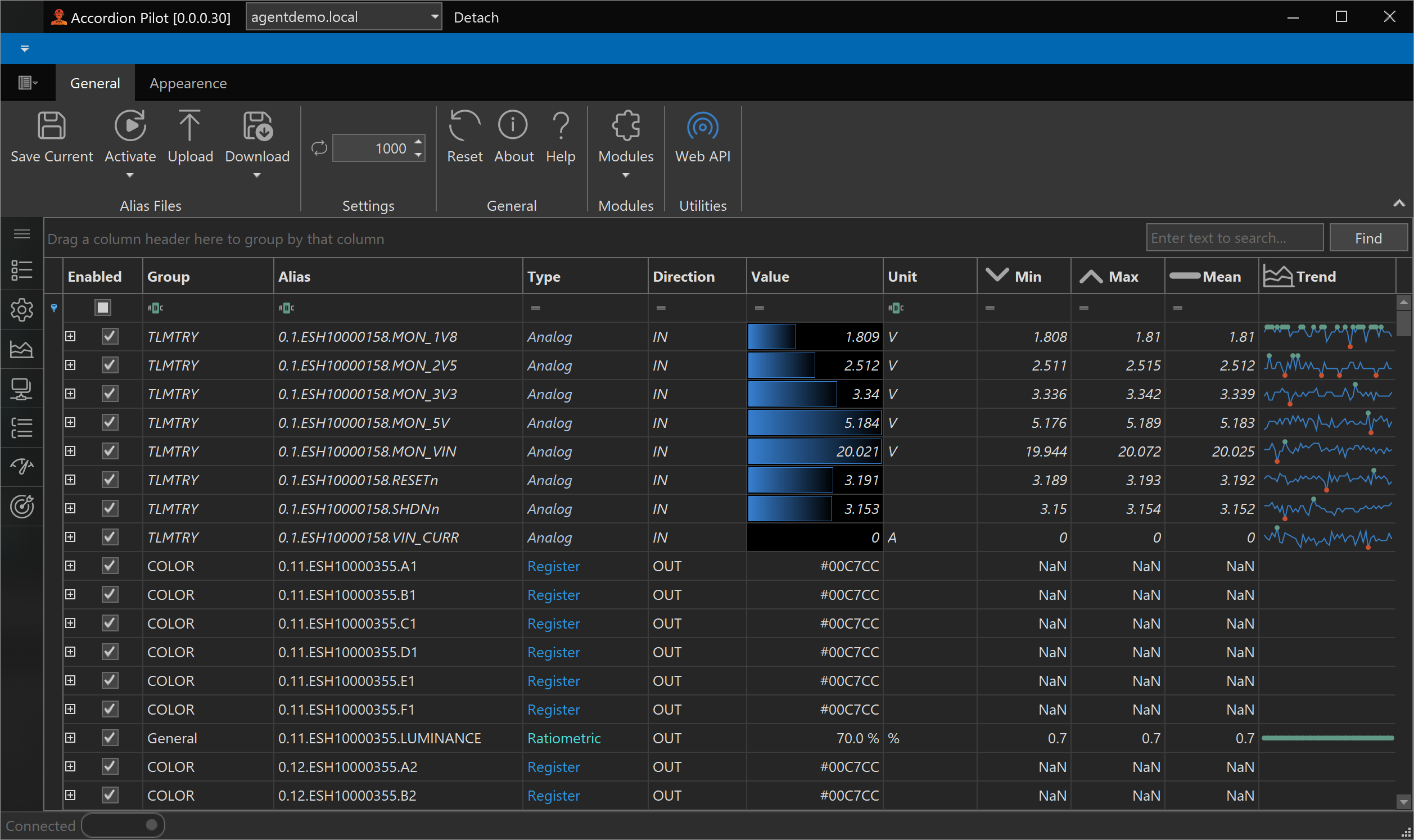
Accordion Pilot is a comprehensive Windows desktop application for interacting with, controlling, and testing Accordion hardware systems. It provides a graphical user interface for all hardware operations including channel management, bus transactions, power supply control, audio/video testing, firmware updates, and system configuration.
What is Accordion?
Accordion is a flexible hardware test and control system developed by E-Sharp AB. It provides a unified interface for controlling various hardware components through a channel-based architecture. The system supports:
-
Digital I/O: GPIO pins, LEDs, switches, relays
-
Analog I/O: ADC/DAC channels, voltage/current measurement
-
Power Management: Programmable power supplies, PMBus devices
-
Communication Buses: I2C, SPI, UART, USB, Ethernet
-
Audio/Video: Audio playback/capture, video output, image display
-
Specialized Hardware: Environment sensors, test equipment, custom modules
Architecture
The Accordion system consists of three main layers:
-
Hardware Layer: Physical Accordion device with connected test equipment and devices under test (DUT)
-
Protocol Server: Network service running on the Accordion device that manages hardware access
-
Client Applications:
-
Accordion Pilot (GUI) - This application
-
AccordionShell (CLI) - Command-line interface
-
Custom Applications - Via .NET or Python APIs
-
Key Features
✅ Channel Management
-
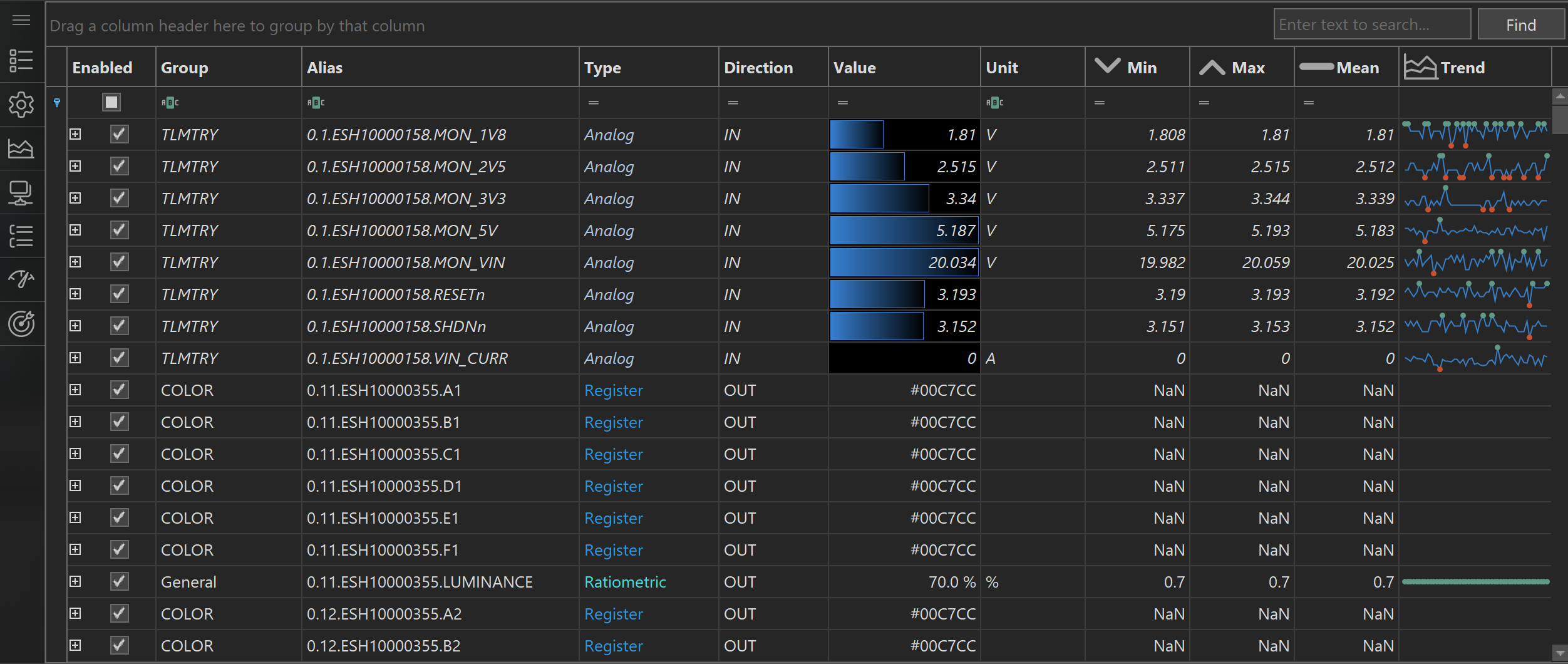
Browse and search all available hardware channels
-
Real-time value monitoring with configurable polling
-
Read and write channel values
-
Channel filtering, grouping, and organization
-
Alias configuration for user-friendly names
✅ Bus Transaction Monitoring
-
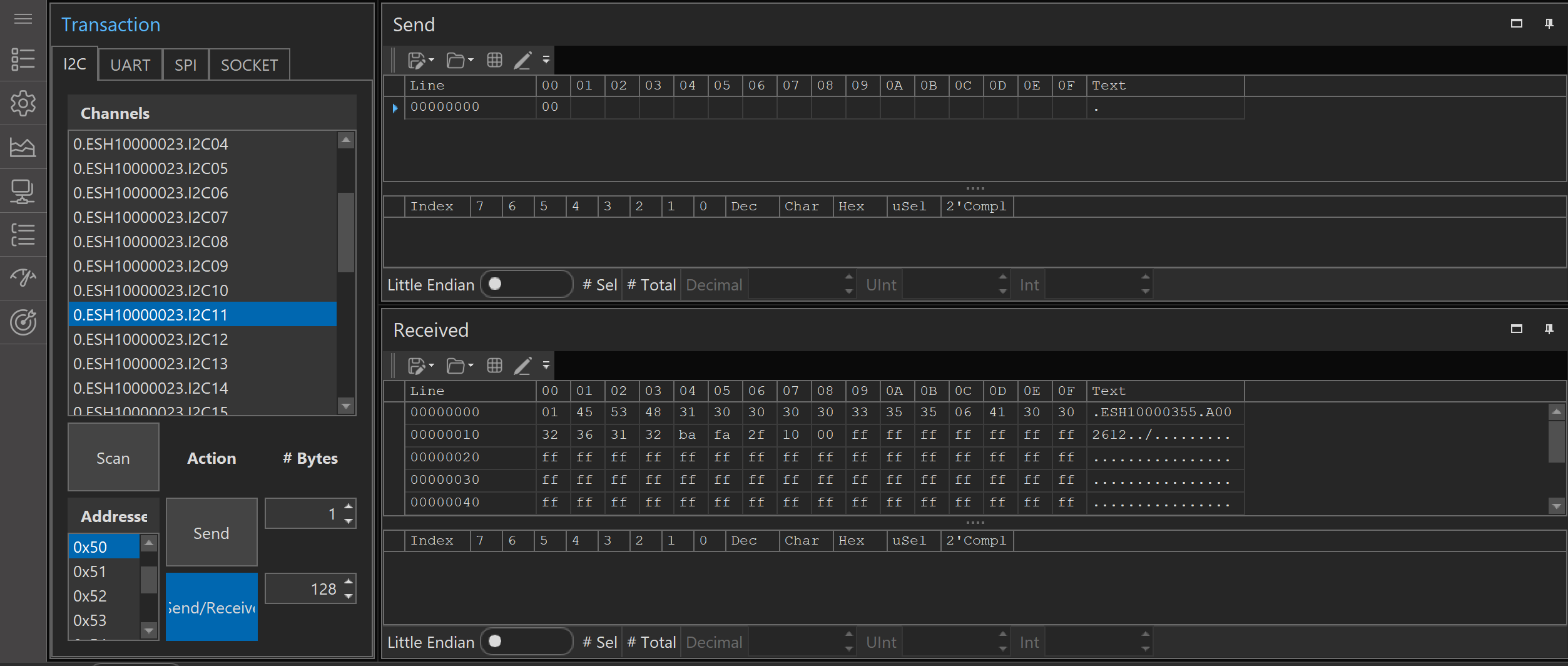
View I2C, SPI, UART, Socket transactions in real-time
-
Transaction history with filtering
-
Detailed transaction analysis
-
Send custom bus commands
✅ Power Supply Control
-
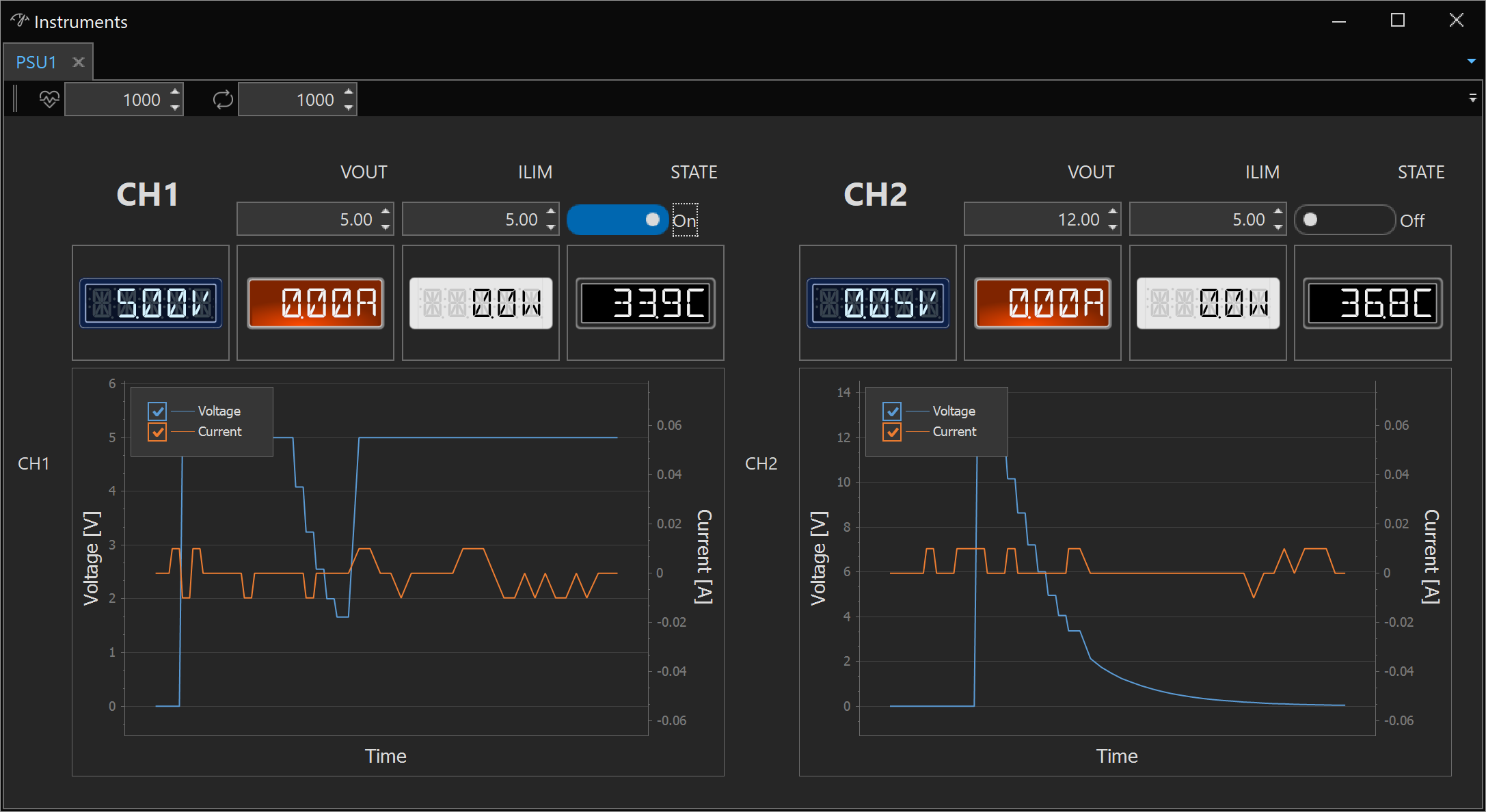
Control programmable power supplies
-
Voltage and current monitoring
-
Over-current protection configuration
-
PMBus device programming
-
Power sequencing
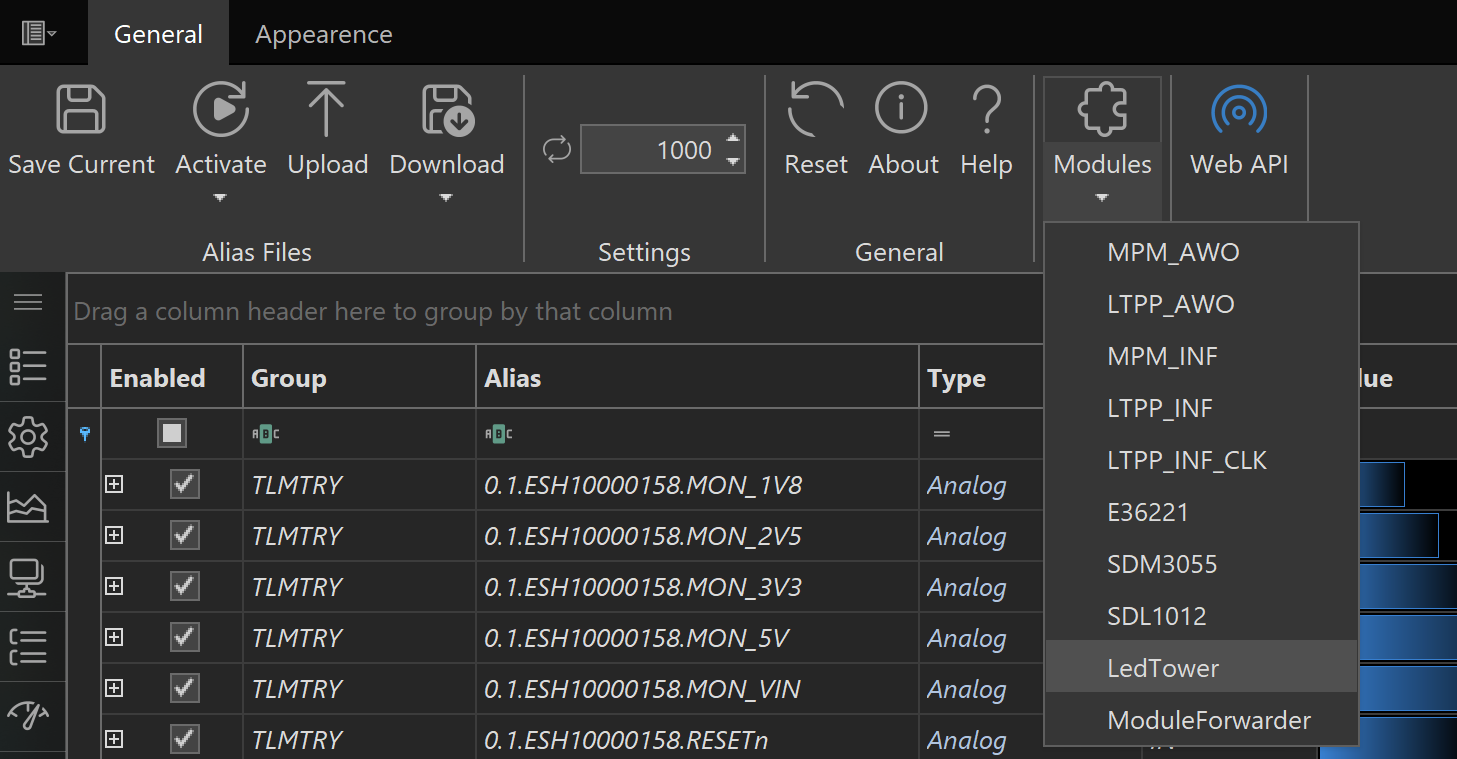
✅ Module Management
-
Load/unload hardware modules dynamically
-
Module configuration and cloning
-
Custom module parameters (InitialData)
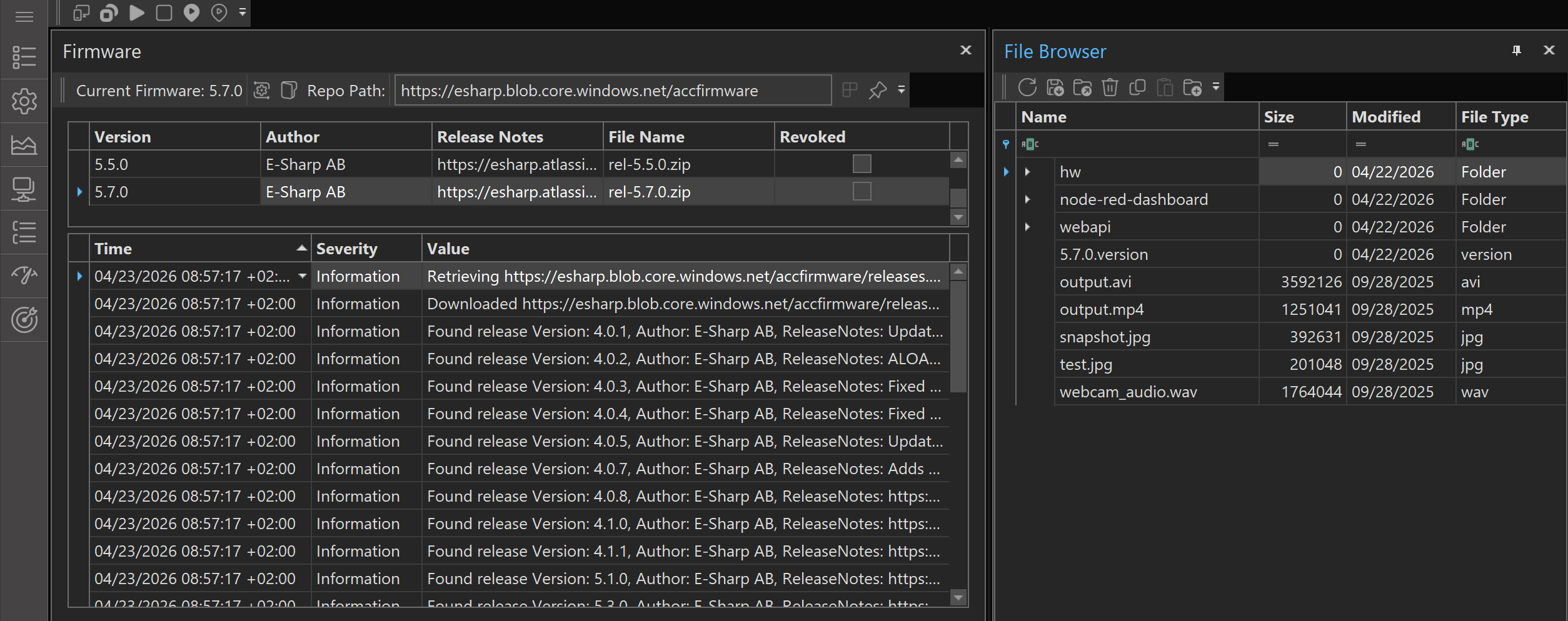
✅ Firmware Management
-
View current firmware version
-
Update device firmware
-
Service start/stop control
✅ System Configuration
-
Network discovery of Accordion devices
-
Connection management
-
Event monitoring (notifications, telemetry)
-
Workspace management
-
Alias file upload/download/activation
Quick Start
1. Launch Application
Run AccordionPilot.exe. The application will display a splash screen with a random quote while initializing.
2. Connect to Accordion Device
-
Click the Attach button in the toolbar (or press the connection toggle)
-
Select or enter your Accordion device hostname/IP address
-
Wait for connection confirmation (status bar shows connection state)
3. View Channels
Navigate to Channels page (default view) to see all available hardware channels. The channel list shows:
-
NetName: Technical channel identifier
-
Alias: User-friendly name (if alias file loaded)
-
Channel Type: Type of channel (GPIO, ADC, I2C, etc.)
-
Capability: What operations are supported
-
Value: Current value (if readable)
4. Basic Operations
Read a channel:
-
Double-click a channel in the list
-
Or right-click → "Get Value"
Write to a channel:
-
Right-click channel → "Set Value"
-
Enter the new value
-
Click OK
Monitor channels:
-
Enable polling (checkbox in toolbar)
-
Set polling interval (default 500ms)
-
Values update automatically
5. Access Features
Use the Navigation Panel on the left to access different features:
-
Channels: Channel list and management
-
Settings: System configuration
-
Chart: Numerical chart for data visualization
-
Transactions: Bus transaction history
-
Log: Application and hardware logs
-
PSUs: Power supply control
-
Cal Table: Calibration table viewer
Application Layout
┌─────────────────────────────────────────────────────────┐
│  Ribbon Toolbar (Connection, Files, Tools, View)   │
├────────┬────────────────────────────────────────────────┤
│        │                                           │
│ Navi-  │                                           │
│ gation │          Main Content Area                │
│ Panel  │       (Channels, Settings, Log, etc.)     │
│        │                                           │
│        │                                           │
├────────┴────────────────────────────────────────────────┤
│  Status Bar (Connection Status, Version Info)      │
└─────────────────────────────────────────────────────────┘
Ribbon Toolbar
-
Home Tab:
-
Connection: Attach/detach, host selection
-
Alias: Load, upload, download, save alias files
-
Tools: Reset, shell, modules
-
Chart: Lookback points, clear history
-
View: Workspace management
-
-
Appearance Tab:
-
Polling: Enable/disable, set interval
-
Skins: Change application theme
-
Workspace: Save/load layouts
-
Navigation Panel
Accordion-style navigation with expandable sections:
-
Channels: Main channel list view
-
Settings: Accordion system settings
-
Chart: Data visualization
-
Transactions: Bus transaction log
-
Log: System log messages
-
PSUs: Power supply control
-
Cal Table: Calibration data
Main Features Overview
Channel Management
Browse, search, read, and write hardware channels. Monitor values in real-time with configurable polling intervals.
Bus Transactions
Monitor and analyze I2C, SPI, UART, and socket communications. View transaction history and send custom commands.
Power Supply Control
Control programmable power supplies, monitor voltage/current, configure protections, and program PMBus devices.
Audio & Video
Generate audio signals, capture and analyze audio, display images and video, manage media files.
Module Management
Load hardware modules dynamically, configure module parameters, clone module instances.
System Settings
Configure connection parameters, manage aliases, control event notifications, and customize application behavior.
Firmware Updates
View firmware version information, update device firmware, manage system services.
Data Visualization
Plot channel values over time, analyze trends, export data.
Calibration Tables
View and manage calibration data for analog channels.
Logs and Events
Monitor system logs, notifications, telemetry events, and debug information.
Tips and Best Practices
Performance
-
Polling Interval: Lower values (100-200ms) provide faster updates but increase network traffic. Use 500-1000ms for normal operation.
-
Channel Filtering: Filter channel list to show only relevant channels for better performance with large systems.
-
Disable Unused Features: Disable transaction monitoring if not needed to reduce overhead.
Organization
-
Use Alias Files: Create alias files with meaningful names for channels to improve usability.
-
Group Channels: Use channel groups to organize related channels together.
-
Save Workspaces: Save different workspace layouts for different test scenarios.
Reliability
-
Monitor Connection: Watch the connection status indicator in the status bar.
-
Check Logs: Review logs regularly for warnings or errors.
-
Save Work: Save alias configurations and workspace layouts before making major changes.
Efficiency
-
Keyboard Shortcuts: Learn toolbar shortcuts for common operations.
-
Context Menus: Right-click channels for quick access to operations.
-
Use Shell for Batch: Use AccordionShell for scripted/automated operations.
System Requirements
-
Operating System: Windows 10 or later (64-bit)
-
Framework: .NET 8 Runtime
-
Display: 1280x720 minimum resolution recommended
-
Network: TCP/IP connection to Accordion device
-
Memory: 2 GB RAM minimum, 4 GB recommended
Getting Help
Documentation
-
This User Guide: Comprehensive feature documentation
-
AccordionShell Docs: Command-line interface reference
-
API Documentation: For developers building custom applications
Support
-
E-Sharp Support: Contact your E-Sharp representative
-
Issue Reporting: Report bugs and feature requests through your organization
Version Information
Check Help → About for:
-
Current application version
-
Deployment information
-
Copyright and licensing
See Also
-
Channel Management - Detailed channel operations
-
Bus Transactions - Communication monitoring
-
Firmware - Configuration
-
Chart viewer - Chart viewer
-
Calibration Table - Calibration
Accordion Pilot - Copyright © E-Sharp AB. All rights reserved.